
Web interface
Start the web interface with podvault serve (or run the Docker image) and open port 8000. A sidebar takes you to six sections: Library, Queue, Schedule, Activity, Storage and Settings. The interface is dark, dense and responsive, and every control works from the keyboard.
Library
Section titled “Library”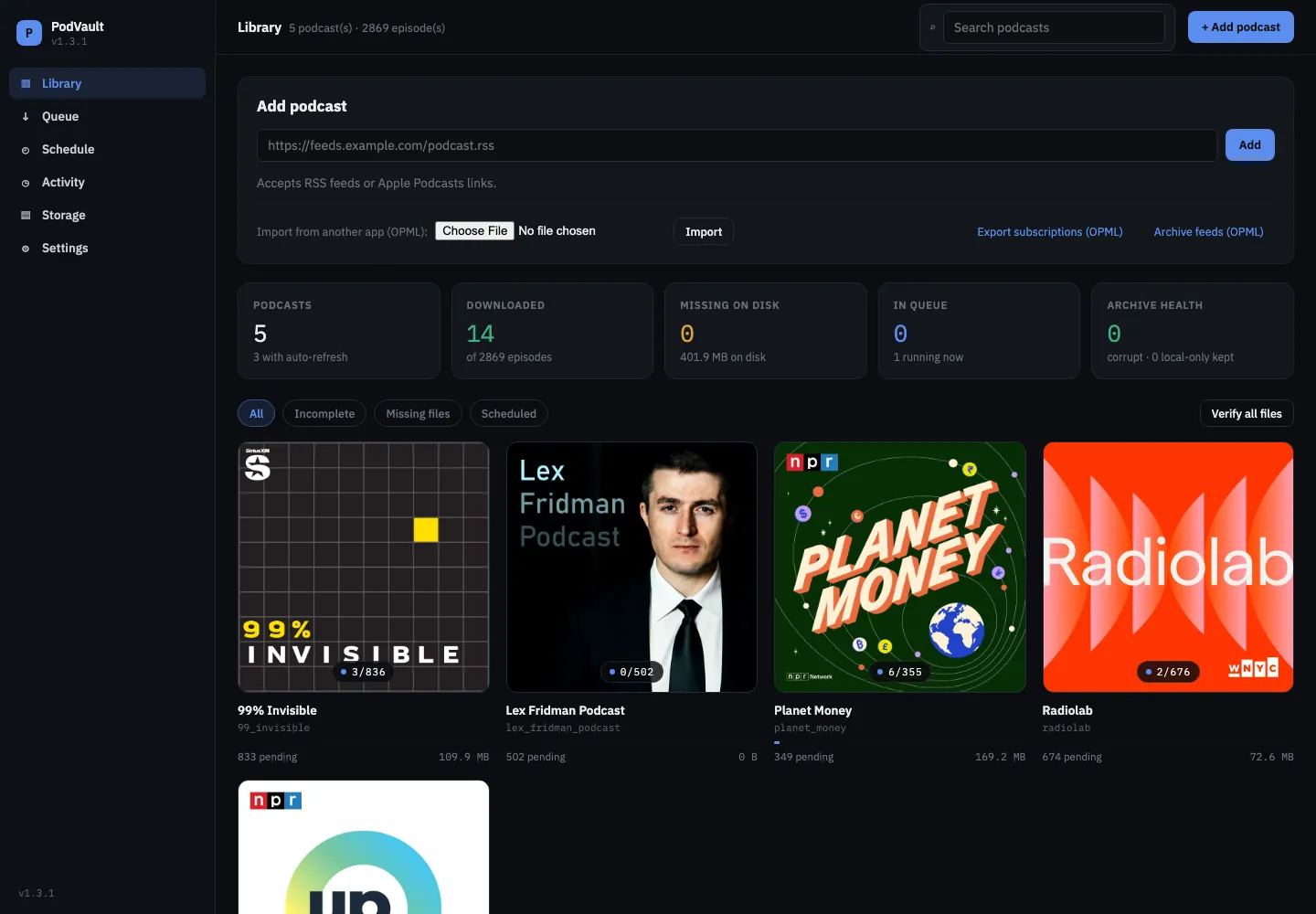
The Library (/) is the home of the app.
- Add podcast: paste an RSS feed URL or an Apple Podcasts link. Apple links are converted to the underlying RSS feed automatically.
- Import an OPML file from another podcast app, Export subscriptions (OPML), or download Archive feeds (OPML), a single file listing PodVault’s own feed for every podcast. See OPML and Podcast app feeds.
- Stat cards: podcasts (and how many auto-refresh), downloaded episodes, files missing on disk, jobs in the queue, and Archive health (corrupt files and episodes kept after leaving their feed), which links to Storage.
- Cover grid with a downloaded/total badge per podcast, plus small badges for corrupt or local-only episodes. Filter with the All / Incomplete / Missing files / Scheduled pills, search by name, or Verify all files to check every download is still on disk.
Podcast page
Section titled “Podcast page”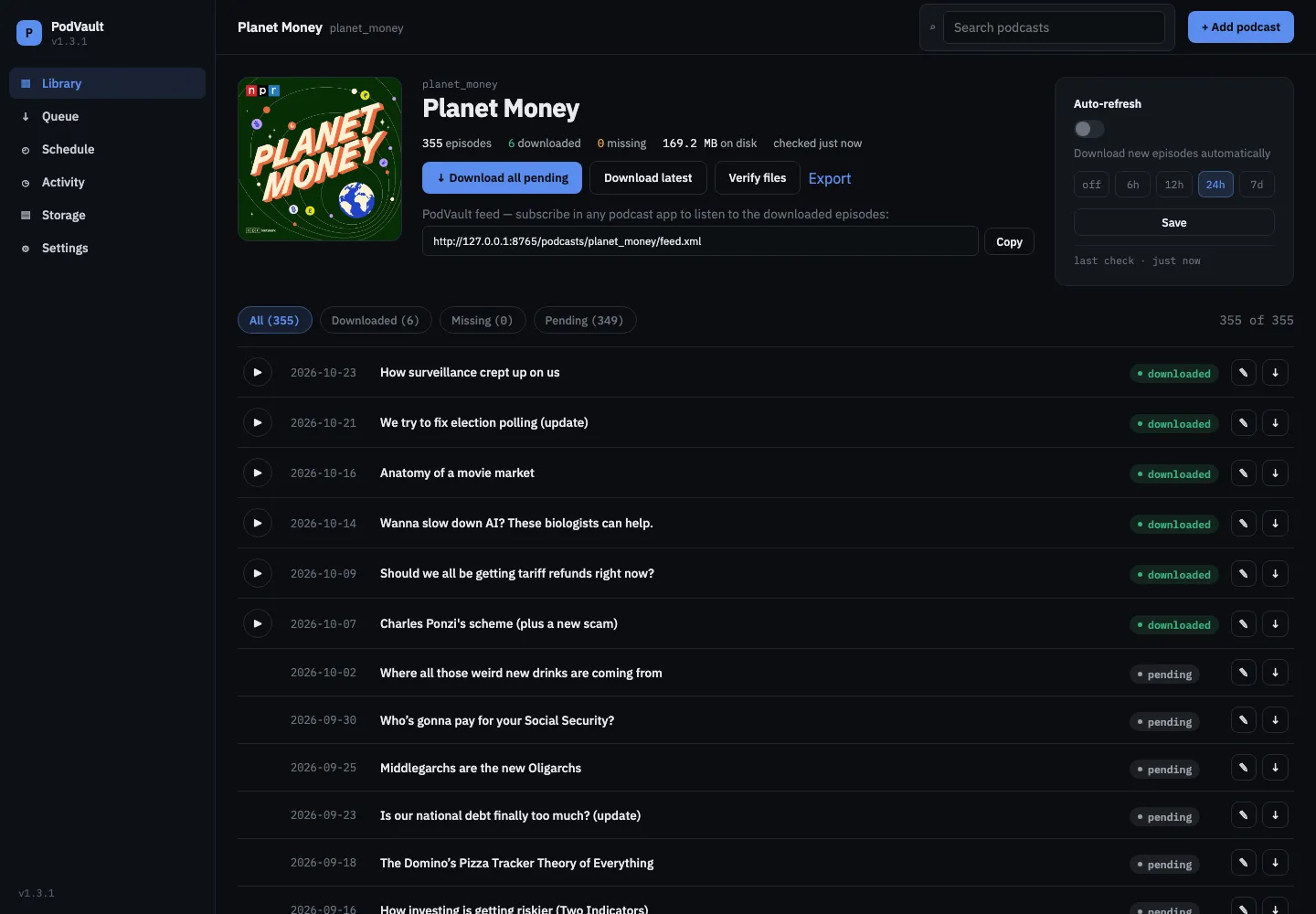
Each podcast has its own page with:
- Episode counts and actions: Download all pending (with a confirmation that shows the episode count and an estimated size and time), Download latest, Verify files and Export (a JSON manifest of the podcast’s episodes).
- Your PodVault feed URL with a Copy button, to subscribe from a podcast app.
- Auto-refresh: check the feed every 6h, 12h, 24h or 7d, and optionally download new episodes automatically.
- The episode list, newest first by real publication date, with status filter pills that show live counts. Dates are shown in full (
2026-10-23), or as#717for shows that number their episodes. Each row has ▶ play (for downloaded episodes), an inline rename, and a single-episode download / re-download button.
Episodes the publisher has removed from the feed stay in the list, flagged removed from feed · local only.
Episode page
Section titled “Episode page”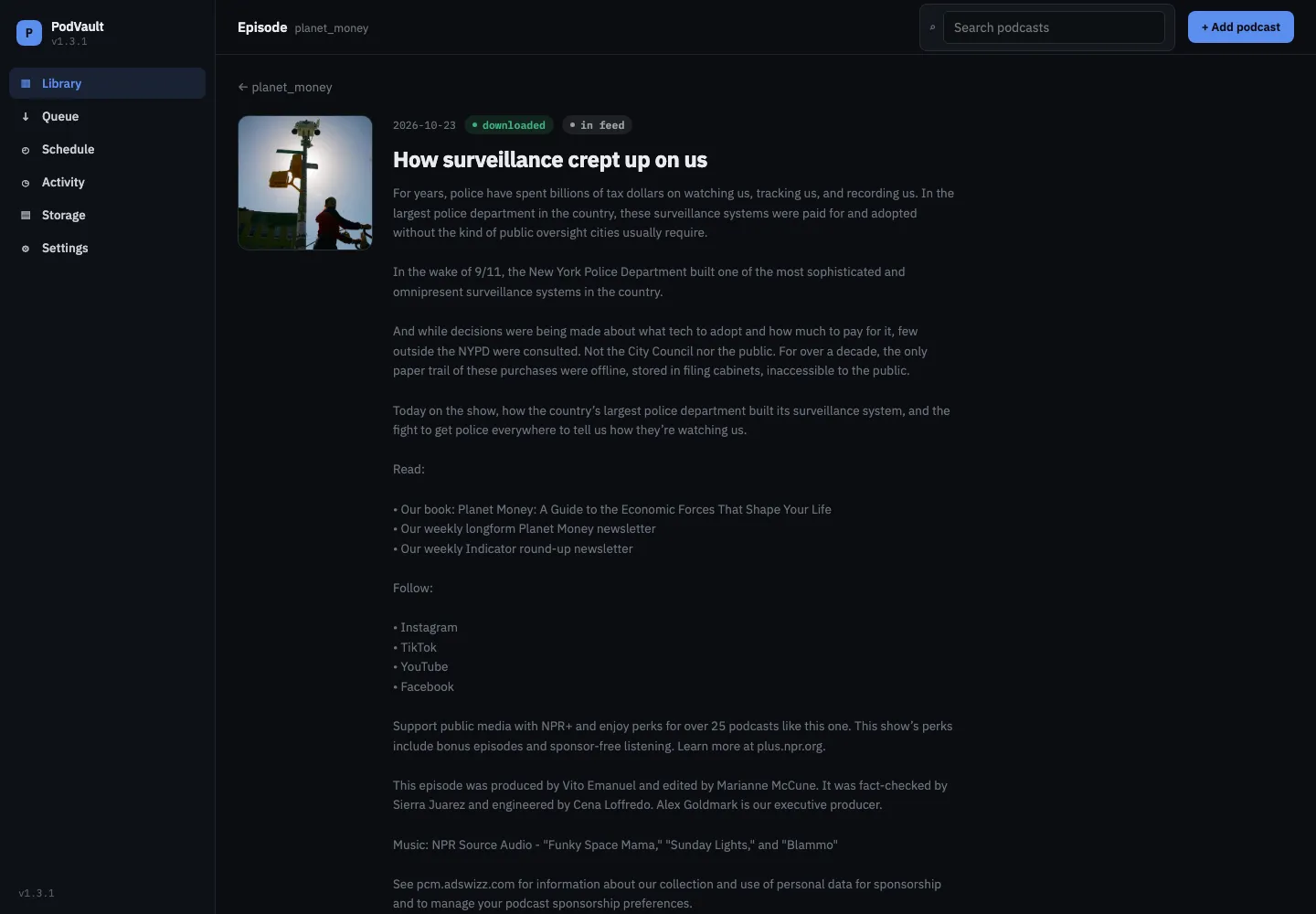
Click an episode for its own page:
- Cover art and the full show notes. Feed HTML is shown as clean text with line breaks and bullet lists; it’s never rendered as HTML.
- Play, Copy path and Re-download.
- A custom name. Renaming an episode rewrites its title tag and renames its folder and files on disk to match. The custom name is stored separately from the feed title, so re-syncing the feed never overwrites it. Clear it to go back to the feed’s title.
- Metadata read on demand for this one file: duration, size, whether the tags are complete, SHA-256 integrity status, the feed GUID, and the files on disk (the audio file, the cover image and the original RSS entry as XML).
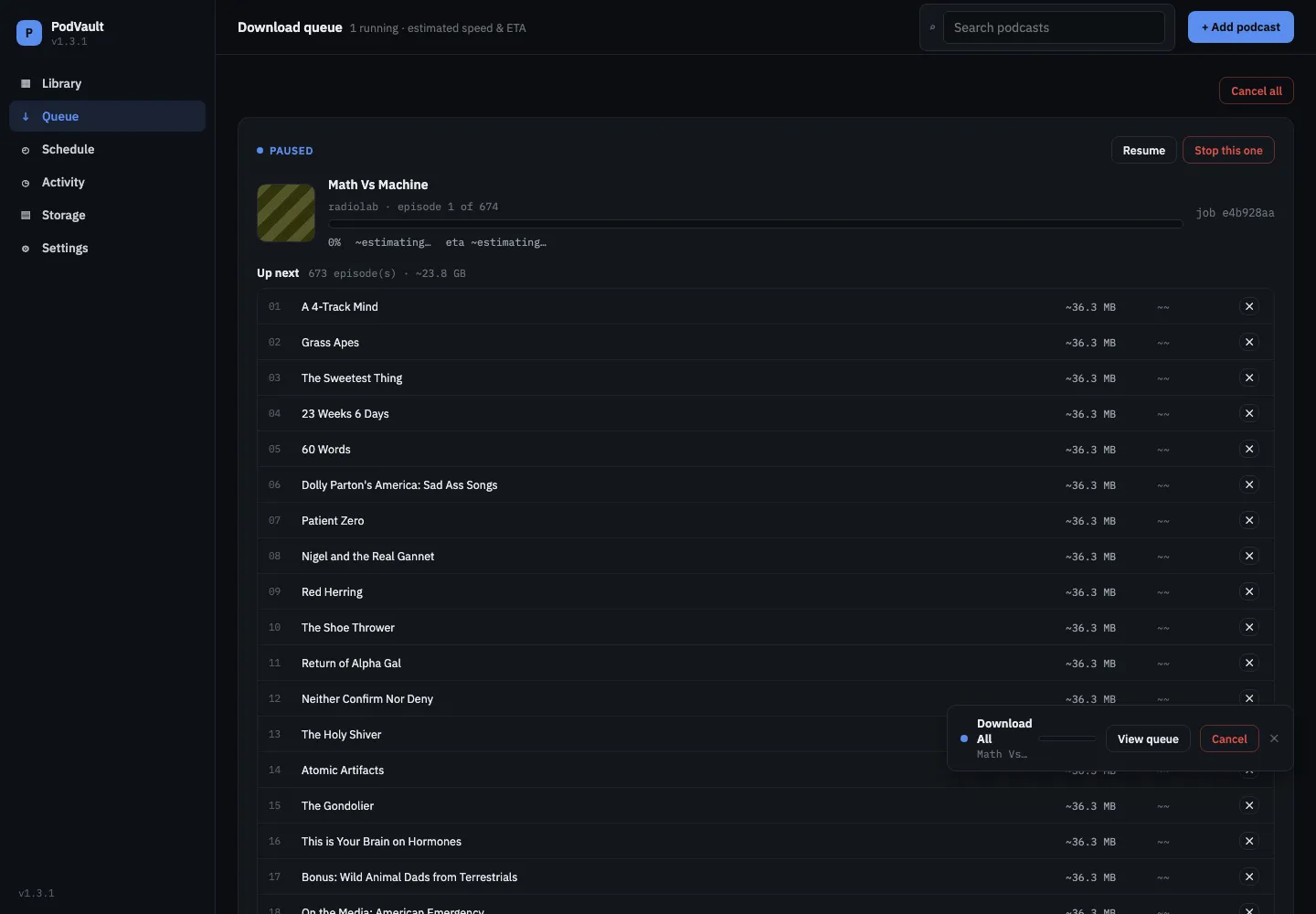
The Queue (/queue) shows what’s downloading right now:
- Progress with an estimated speed and time remaining (marked
~), worked out from how long the job has been running and the podcast’s average episode size. - Pause / Resume and Stop this one per job, and Cancel all for the whole page.
- An Up next list with estimated sizes, where ✕ drops a single episode before it’s reached.
Pause, stop and cancel take effect between episodes. An episode that’s already downloading finishes and is kept, so you never end up with half a file.
Schedule
Section titled “Schedule”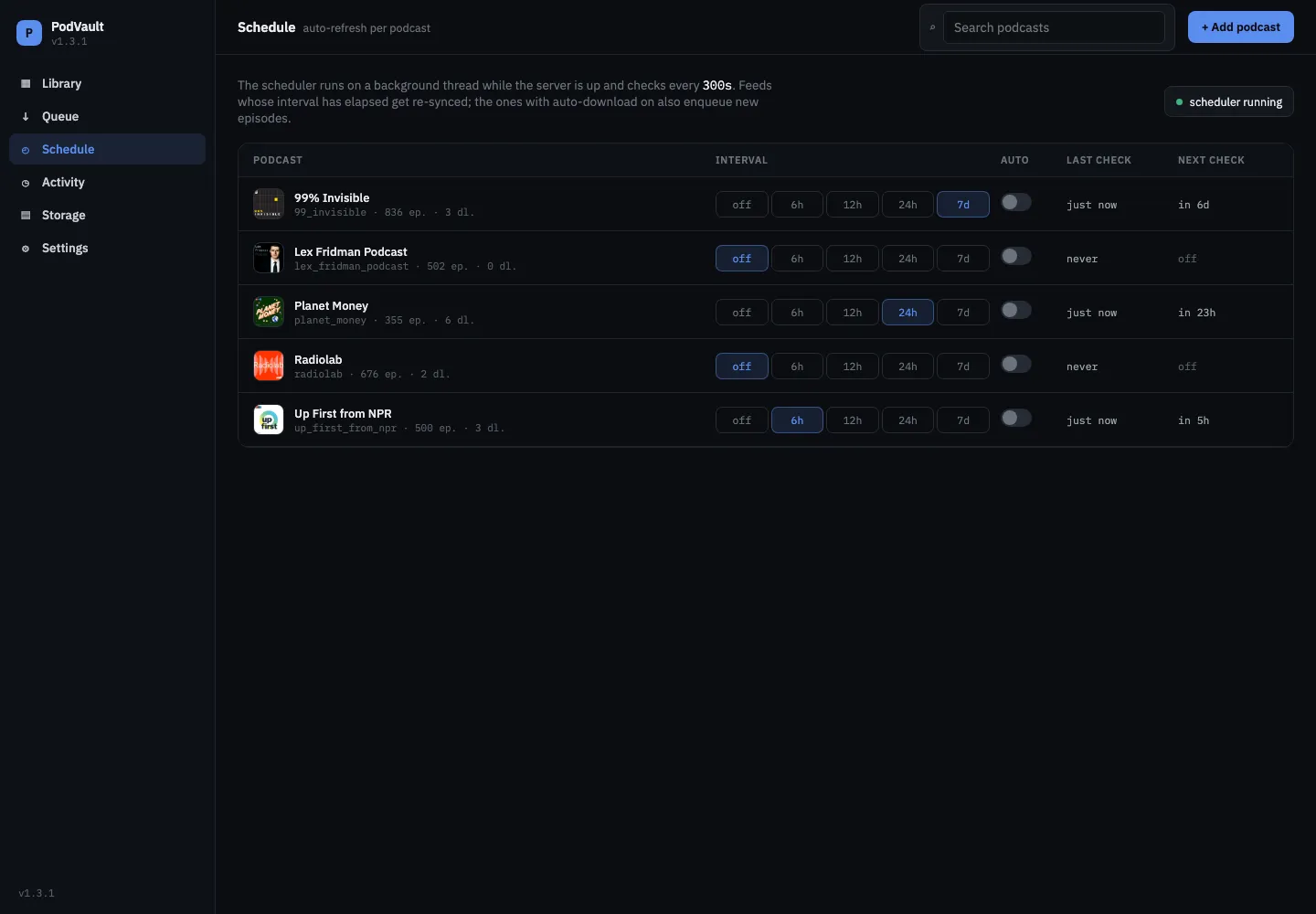
The Schedule page (/schedule) lists every podcast’s auto-refresh interval and auto-download toggle in one table, with the last and next check, so you don’t have to visit each podcast. Scheduled checks run while the web server is running; the page shows whether the scheduler is running.
Activity
Section titled “Activity”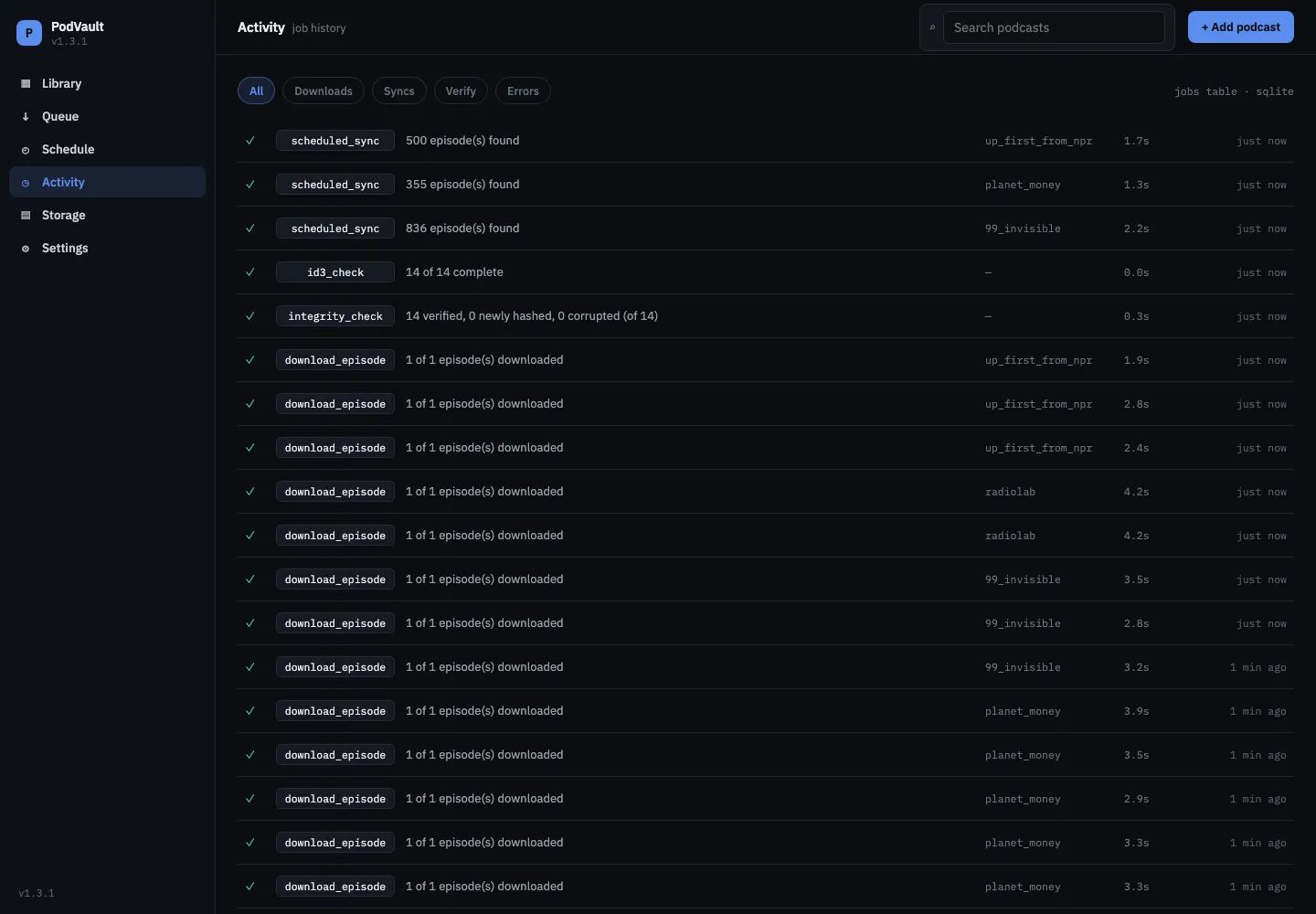
Activity (/activity) is a filterable history of every background job: downloads, feed syncs, verification runs, tag and integrity checks, and errors. It includes the syncs the scheduler ran on its own.
Storage
Section titled “Storage”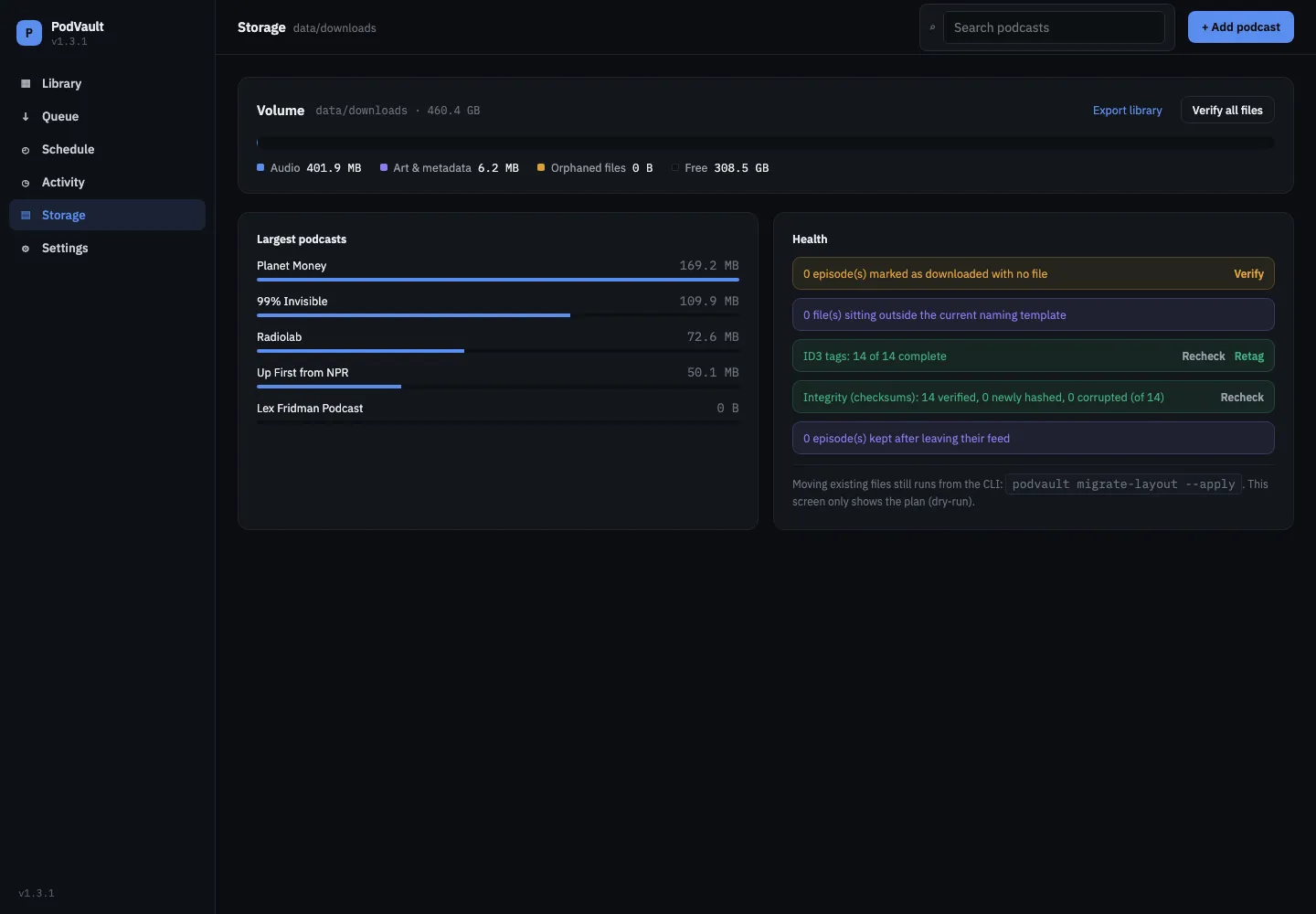
Storage (/storage) shows disk usage by file type (audio, art and metadata, free space), your largest podcasts, and an Export library link. Its Health panel runs the archive checks:
- Missing files: episodes marked downloaded whose file is gone from disk.
- Outside the naming template: files that don’t match the current folder/file template. This is a dry-run list; moving them is done from the CLI with
podvault migrate-layout. - Tag completeness: whether every file has its title, artist and cover art tags.
- Integrity: re-hashes every file and compares it with the SHA-256 checksum taken at download time, naming each corrupt file, with a Re-download all action.
- Kept after leaving the feed: episodes the publisher removed, expandable to review each one.
The tag and integrity checks run as background jobs, and the page shows the most recent result instead of rescanning the library on every visit. More in Archive safety.
Settings
Section titled “Settings”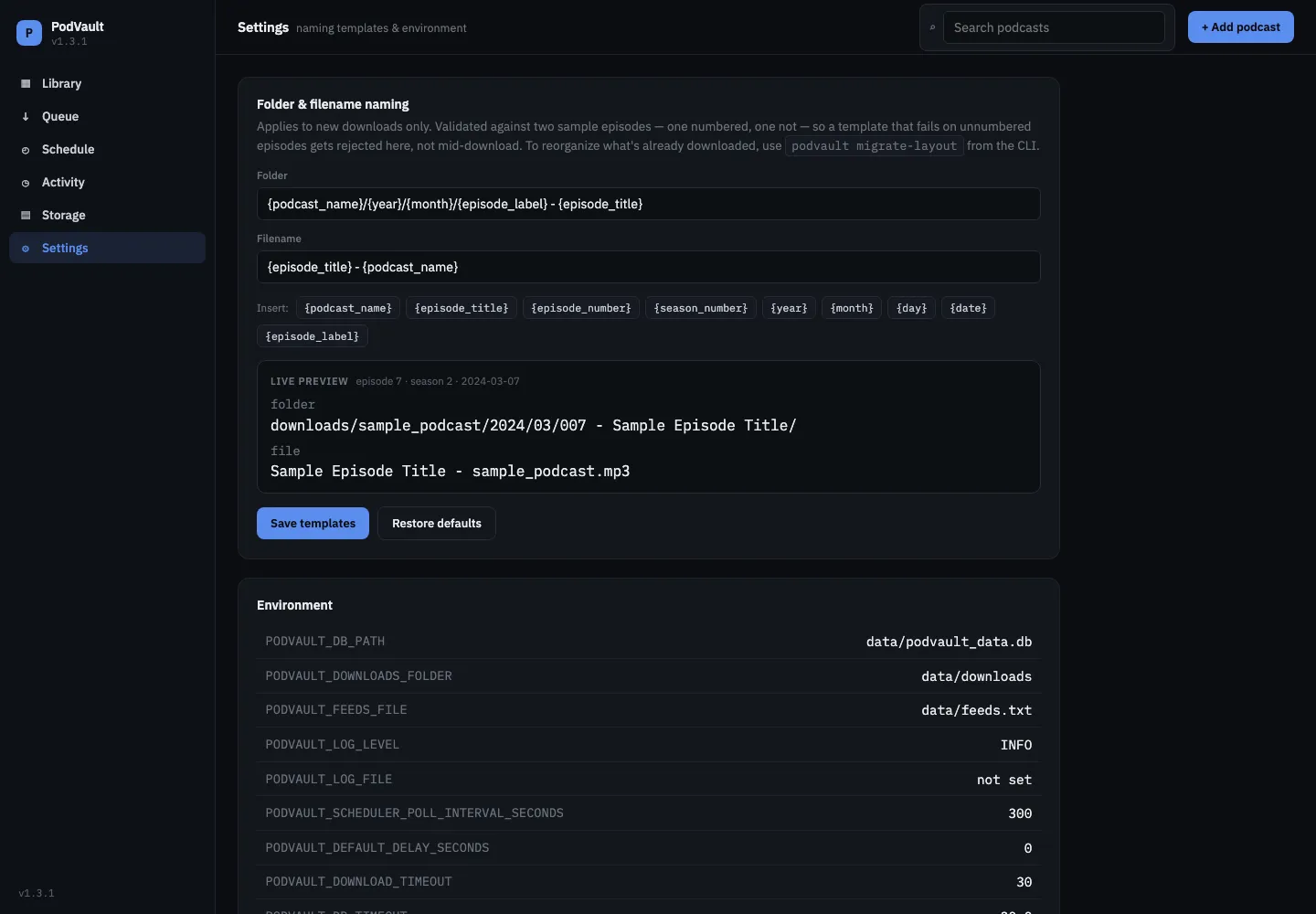
Settings (/settings) is where you set the folder and filename templates. Click a variable to insert it, watch the live preview, and use Restore defaults to go back. Templates are validated before saving. See naming templates.
A read-only Environment panel shows the PODVAULT_* settings in effect. With a login on, it shows the username and whether a password is set, never the password itself.
The player
Section titled “The player”Every downloaded episode has a ▶ button that opens a player bar at the bottom of the page, with cover art, title and podcast name, a seek bar you can scrub without waiting for the whole file to load, previous / ±15s / ±30s / next, and a playback-speed toggle.
The player streams your local copy, so an episode has to be downloaded first. PodVault reloads the full page on every link, so playback stops when you navigate to another page.
Background jobs, toasts and the job strip
Section titled “Background jobs, toasts and the job strip”Anything that takes a while (adding a feed, downloading, checking tags or integrity) runs as a background job. You get a small toast when it starts, and a job strip in the corner shows its progress with a Cancel button. The strip keeps tracking the job as you move between pages.
Sign in
Section titled “Sign in”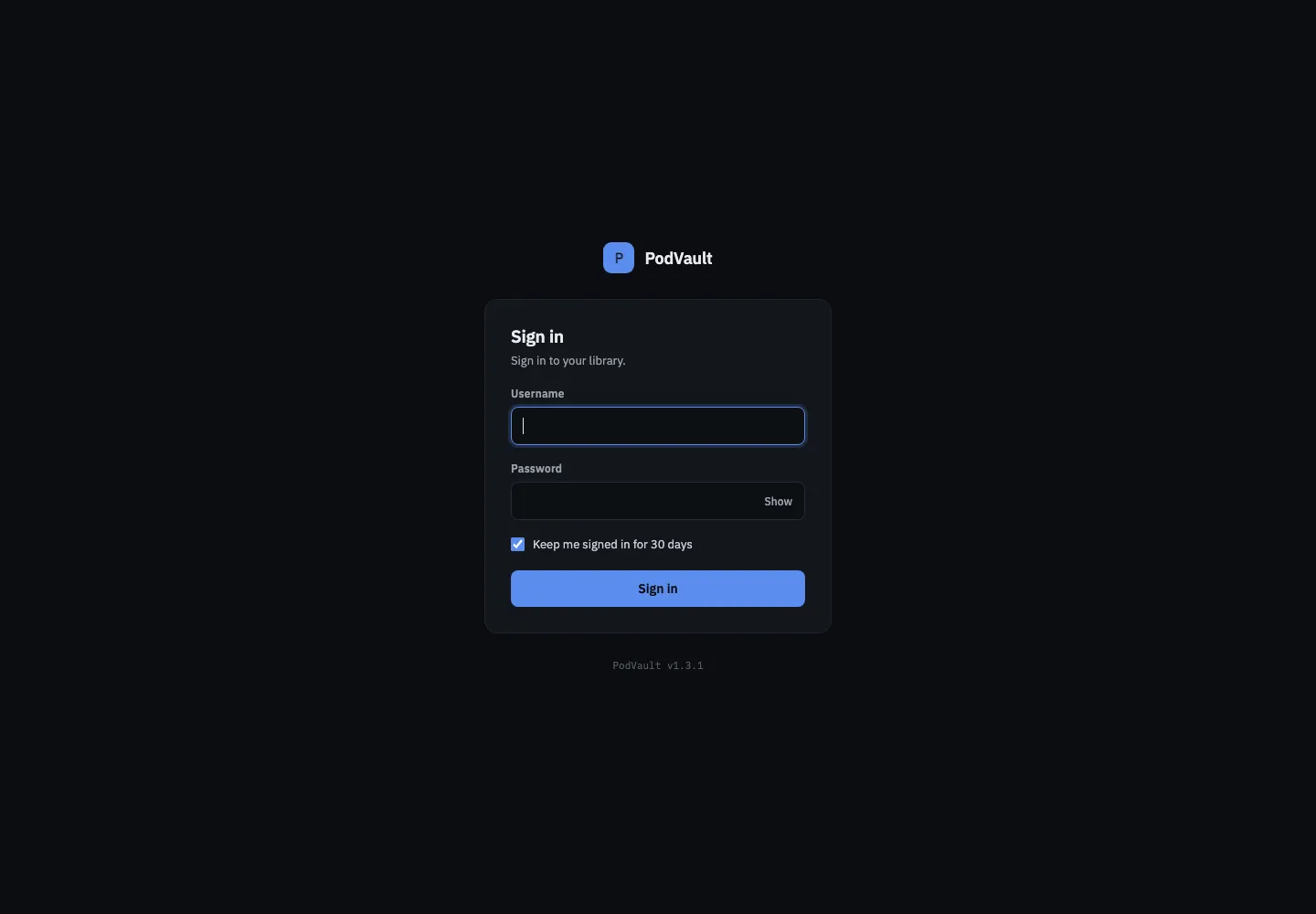
When PODVAULT_USERNAME and PODVAULT_PASSWORD are set, every page asks you to sign in first, then takes you back to the page you asked for. Keep me signed in for 30 days is on by default. With a login on, the bottom of the sidebar shows your username, the version and a Sign out button. See Security.
On your phone
Section titled “On your phone”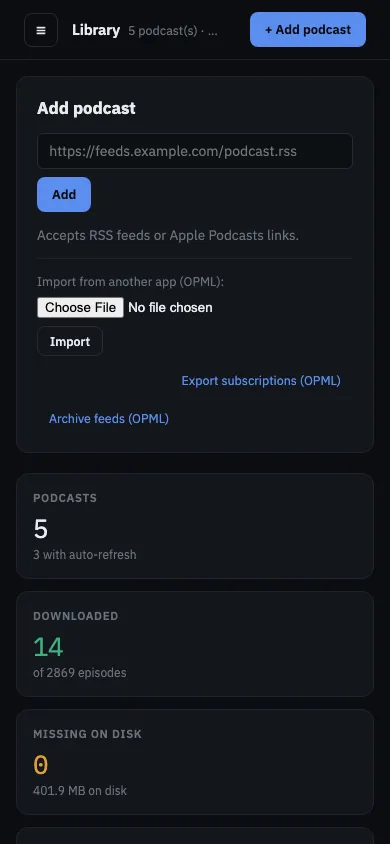
The layout adapts to small screens, with a collapsible sidebar, so you can manage the archive from your phone on your home network.